Recover the grid
Estimate rows and columns, move the sampling grid, and refine individual cells. Review automatic repair before accepting it.
PIXEL ART / PIXTAME
Clean up screenshots, scaled images, and AI pixel art for illustrations, static game assets, and craft designs.
Free · No account · Processed in your browser


MADE FOR YOUR WORKFLOW
Estimate rows and columns, move the sampling grid, and refine individual cells. Review automatic repair before accepting it.
Remove backgrounds, merge similar colors, or paint with a custom color. Keep cleared cells transparent.
Export one pixel per cell, or scale up by an integer factor. Save a project file to keep editing.
PNG, JPG, or WebP. Start with something you like.
Align the grid, refine colors, and keep the little details.
Export a pixel PNG or a bead pattern with color codes.
A LITTLE GUIDANCE
Start with a practice image. Check the grid, refine sampled colors, and export clean pixel art.
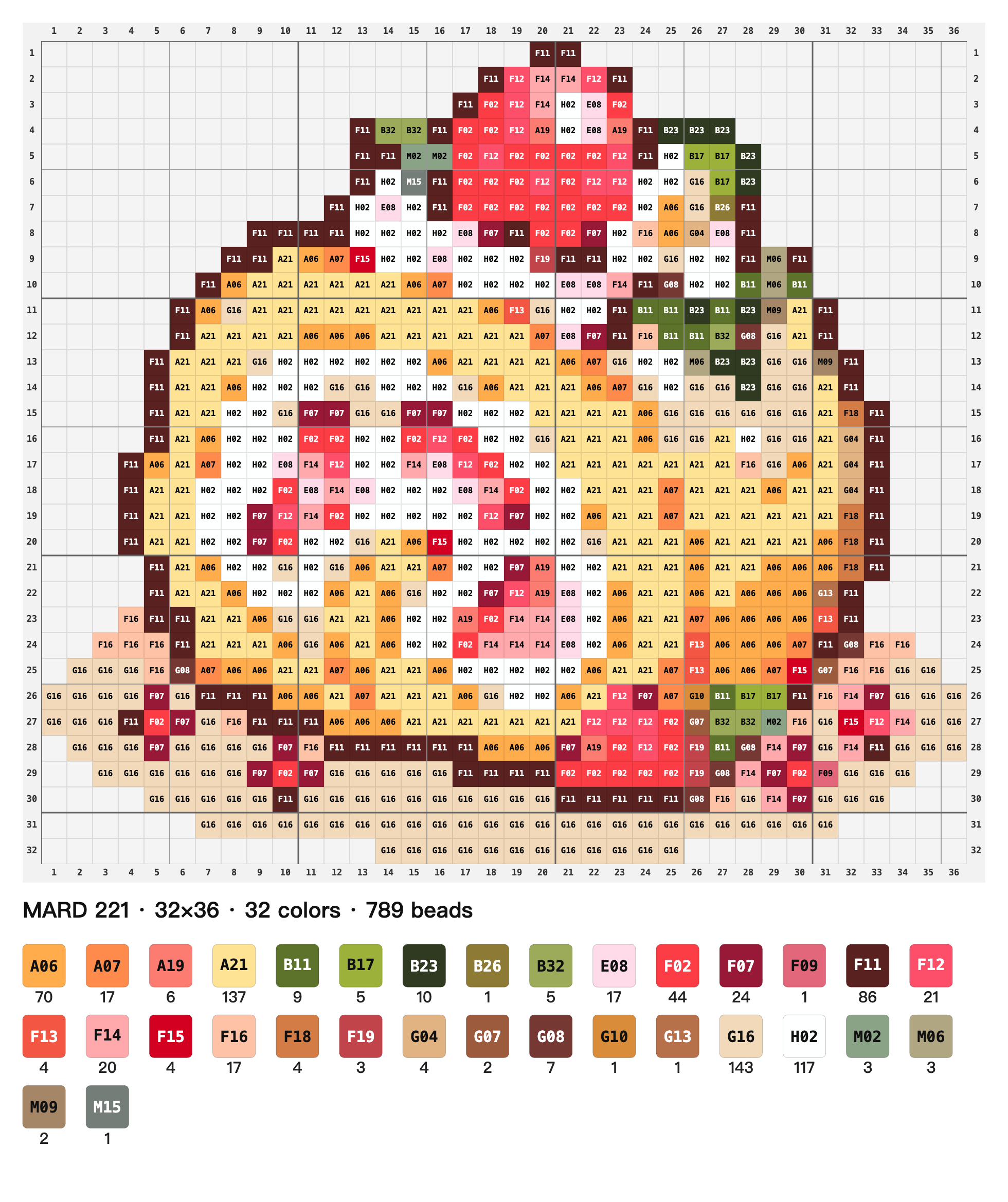 Pattern detail
Choose your bead palette, check the colors and quantities, and make your first pattern.
GOOD TO KNOW
From your first image to a finished design. Pick a category and find what you need.
Free to use · No account · Local processing
PixTame helps you turn images into regular pixel grids, refine sampled colors, remove backgrounds, merge similar colors, and export pixel PNGs. Use it to clean up pixel illustrations, static game assets, or designs for craft projects. You can keep the result as a digital image or continue preparing it as a fuse bead pattern.
Import a PNG, JPG, or WebP into PixTame, check the columns and rows, then adjust the grid position and sampling points. Each grid cell becomes one pixel in the Pixel PNG export. Images with an existing pixel structure are easier to align. You can also import photos, but they usually need more simplification and manual correction.
You can try PixTame on AI-generated images with uneven cells, blurry edges, or extra colors. It helps you establish a regular grid and correct individual cells, but cannot guarantee recovery of ambiguous or missing details. Compare the original with the repair preview before accepting it, especially around eyes, outlines, and narrow gaps.
Select the background in PixTame, inspect the pink candidate cells, and apply the removal. Use recovery controls or undo if part of the subject is removed. Cleared cells stay transparent in Pixel PNG and Upscaled PNG exports. Existing white pixels do not become transparent automatically; select and clear the actual background first.
PixTame exports Pixel PNG and Upscaled PNG. Pixel PNG uses one pixel per grid cell, while Upscaled PNG provides a larger display image. Download a PixTame project file separately to preserve the source image and editing state. A PNG does not replace an editable project backup, and SVG export is not currently available.
Basic editing and PNG exports in the current PixTame web editor are free, with no account required. Images, pixel data, and project files are processed locally in your browser and are not uploaded to our servers. See the privacy page for the analytics configuration and opt-out controls. Analytics exclude image contents, filenames, and exports.
Check the rows and columns, then move the grid and adjust sampling points to align them with the original pixels. For blurry screenshots or AI-generated pixel art, preview the automatic repair and refine individual cells with the brush. Complex images may still need manual adjustments.
Align the pixel grid first, then gradually merge similar colors or replace colors in the color statistics panel. Check outlines, shadows, and highlights so important details are not lost, then export a pixel PNG.
With PixTame, start by importing an image, adjusting its grid, and matching bead colors. Export a pattern with coordinates, color codes, and estimated quantities. For your first project, choose simple, clear pixel art and check the outline, background, and important details before placing beads. Complex photos or blurry images may need more manual work.
Import a PNG, JPG, or WebP into PixTame, check the grid dimensions and alignment, then refine the background and colors. Choose the palette that matches your actual beads, review the mapped-color preview and counts, and export a Bead pattern PNG. Use the mirrored export when your making process requires a horizontal flip.
PixTame currently supports MARD 221, MARD 291, and color-code reference data for COCO, Manman, Panpan, and Mixiaowo. Color codes are not interchangeable between brands, so choose the palette that matches your supplies. Perler and Hama palettes are not currently built in; check physical colors yourself when using those materials.
PixTame estimates color matches and quantities from your current design and selected palette. Screens, physical bead batches, and palette data can differ. Grid or background changes also affect the counts. Check physical samples and your inventory before buying supplies. Transparent empty cells mean no bead is placed; they are different from physical transparent beads.
PixTame exports regular or mirrored bead pattern PNGs with grid lines, coordinates, color codes, quantities, and an optional text watermark. Print the PNG as a reference and check readability and cropping. It is not a calibrated, actual-size pegboard template. Direct PDF and CSV exports are not currently available.
Yes, but keep the PixTame project file as well as the exported PNG. The project preserves the source image and editing state so you can reopen it and change the grid, background, colors, or brand settings. Browser autosave keeps local progress; moving to another device requires exporting and importing the project manually.
Import a JPG, PNG, or WebP photo, adjust the grid size, remove the background, and match a bead palette. Photos often contain many colors and fine details, so a small fuse bead pattern may need color merging and manual simplification; it will not look exactly like the original.
Rows and columns determine the pattern dimensions, and each non-empty cell represents one bead. PixTame estimates quantities by color from the current design. Check your pegboard size, bead brand, and physical colors before making it, and allow a few spare beads.
SOMETHING GOOD STARTS WITH A PIXEL
Save a .pixtame project and pick up where you left off.