PIXTAME · PRACTICAL GUIDE
How to turn an image into a fuse bead pattern
A useful bead pattern needs a sensible grid, readable details, and colors you can actually obtain. Start with simple pixel art, then check the pattern before buying beads.
Step by step
Start with a simple image
Import a PNG, JPG, or WebP you have permission to use. For this exercise, use the cake image below. Clear pixel art is a more predictable starting point than a detailed photograph. If the grid is distorted, follow the grid recovery guide first.
Choose the grid size
Check the number of columns and rows. More cells can preserve detail, but also increase bead count and the physical size of the piece. Fewer cells need simpler shapes. Check that the design fits your pegboards; physical size depends on the bead and board spacing.
Clean the background and important details
Preview background selection before applying it. Inspect eyes, outlines, and tiny highlights at a useful zoom. Use painting or sampling-point adjustments to fix individual cells. Merge similar colors gradually: fewer colors are easier to source, but can flatten shading.
Select the bead brand and inspect the mapping
Click the paint-color button to open the palette dialog. Choose your palette in “Brand”, such as MARD 221 or MARD 291, then close the dialog. Enable “Bead colors” in the color summary to preview mapped colors and inspect the statistics. Click a palette color to highlight its cells; double-click it to replace that color if needed. Displayed colors are approximations, so check physical samples before purchasing.
Export a pattern and save the project
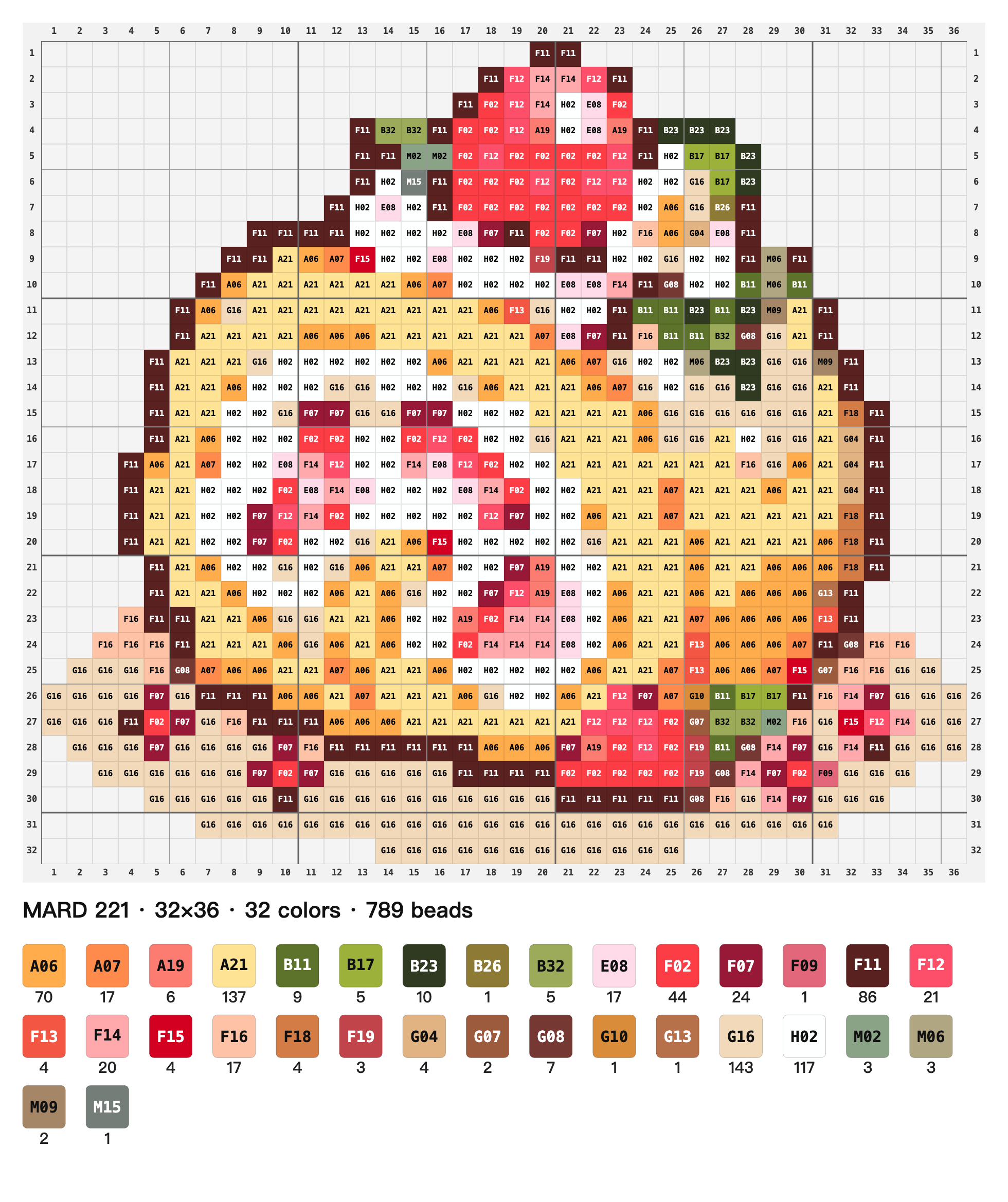
Choose “Bead pattern PNG” for a grid with coordinates, color codes, and usage counts. Choose “Mirrored pattern PNG” only when you want the design flipped horizontally. Also download a JSON backup to keep the project editable. The current editor does not provide CSV export.
Practice: from cake pixels to a printable pattern
The pattern below was exported from the current editor using the previous guide’s recovered cake image, similar-color tolerance 12, and the MARD 221 palette (32 colors, 789 beads). It demonstrates the pattern layout and estimated counts; it has not been verified by assembling physical beads.

Questions and limitations
Does the pattern match real beads exactly?
No. Screen settings, lighting, palette data, and bead batches can differ. Color mapping and bead counts are estimates; inspect the pattern and your supplies before buying.
When do I need a mirrored pattern?
When the intended assembly or ironing orientation requires a horizontal flip. Compare it with the intended front of your finished piece; mirroring is optional.
Can I continue editing on another device?
Yes, by downloading a JSON project backup and importing it on the other device. Local browser autosave does not sync automatically.
Can I export a CSV shopping list?
Not in the current editor. The PNG pattern includes color codes and counts. Check those estimates manually before purchasing materials.
Try the steps with your own image.
Open PixTame →